 Google is a great company that change internet world. Many of the people around the glob use Google in their internet life. Now, My Wonderful I.T. will show you some best way to use Google to improve your modern life. All this way below
Showing posts with label Trick. Show all posts
Showing posts with label Trick. Show all posts
12 Best Google service
Google is a great company that change internet world. Many of the people around the glob use Google in their internet life. Now, My Wonderful I.T. will show you some best way to use Google to improve your modern life. All this way belowSpeed up your computer by notepad

For everyone who has the problem with your computer’s speed
this is the helpful trick for you. After your computer has been used for a
while it is starting to slow down. By this trick you only have a notepad in
your computer that already come with your windows.
After read this trick you will not in problem of your
computer’s speed anymore. Let’s make your computer speed up with this simple
trick.
Download Video from YouTube without any Sotfware

YouTube is the biggest video website in the world which make
by Google. Music, movie, cartoon and more videos are on the YouTube website.
Millions of the view every day that plays the YouTube video. Also the millions
download videos on YouTube every day too. Many users try to install some
software and plugin to download video on YouTube. Example: One that software Internet Download manager. Now by this
trick I will you will easy to download video on YouTube without installing any
software or plugin. You can download video in any format and any quality that
you want. Many people have tried to find this way so now My Wonderful I.T.
bring this to them.
Windwow Safe Mode In Windows 8

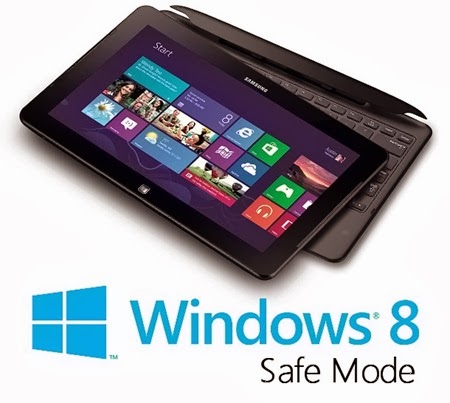 For the newest operating system of Microsoft, windows 8 don’t allow user to login to the safe mode. Microsoft developed this for user easy to use but it is sometime difficult to troubleshoot. For windows 7 and XP user it is not difficult to find the safe mode. You just reboot and press F8 key at post before the windows boot (Windows logo appears). But for windows 8 it is not easy like that. You have to be an advance to find it but by this trick you don’t have to be advancing just some simple command will lets you into the safe mode.
 Download Facebook video without any software or plugin

Facebook is the largest social network in the world. With
the much of million user Facebook is common update thing. While you browsing
the Facebook and you see a wonderful or great video and you prefer download it
to view offline. And you don’t want to find on Facebook next time because it
difficult to find with everyone update status every day. But you don’t want to
download any fool software and plugin.
I think you all have Google Chrome
browser in your personal computer now day because it is the best one. With this
trick for chrome user you can download any video from Facebook with any third
party software or plugin.
- First you have to go to URL of video that you want to Download. You can go into your NewFeed, Fan page or someone time line.
- Right Click on that video and choose “Open link in new
tab”.
Note: You can copy link location from other browser and past in to Google Chrome too.

- In the new tab the video have the link URL like the address exaple below
https://www.facebook/story.php?story_fbid=12345&id=12345&_rdr
- Now what you have to do is change the the URL in the address bar to mobile version from “www” to “m”. See the example below
https://m.facebook/story.php?story_fbid=12345&id=12345&_rdr
- In this next step you just play that video and right click choose “Save video as…”

- Save video where you want to save
- Click save
Now after download complete you have a video to in your
computer from Facebook

Download The Whole Website To Use Offline With Internet Download Manager IDM


Some of the website is a really lovely website. It put all
best reference in it. This website make you to open it single day. If you love
it like that why don’t you download it for use offline? If you don’t have
internet connection you can still use it in your local computer and this way
can make you to browse any website at anywhere and anytime even without
internet connection.
Hide Folder In Android Phone Without Any Application

There are million searches out there in google and google
play to search for the app in android to hide the file or folder. But they don’t
know about an easy way to hide file or folder in android without any
application
How to set up password on USB in windows 8

The security became to the most important subject. So Microsoft have cared much about this. USB is a device for storage but it less security when it full of important files. BitLocker is a small program with power of security to protect storage device with password. BitLocker come with Windows 7 and upper. You don't have to install it. That why I said without any software. The step to put the password :
Download A Full Website For Access Offline With HTTrack
| Since the internet
becomes popular the website is the best way to learn. People start to read,
research, and study by the webpage. Some website is really necessary for you
that make you to it for the full website. But sometime it is difficult for you
to find the internet connection to access that webpage.
This is the
free source call HTTrack that allows you to download the full website to
access it offline. You use it in any computer and anywhere without connect to
internet. I mean you can access that website offline.
Download this easy and small software. Just download and
install it in your computer so you can access your favorite website offline. |
Configuration to get high download speed in Utorrent
When you download your full movie, software or game by
torrent sometime it get bored because download speed is too low sometime it’s
only 0.1kb/s and sometime is tell to the time to finish is many years more that
make you cancel many torrent download. It’s funny, isn’t it? Now this such as
thing will not happen for you any me you can get the full download speed in
your torrent without download any software you just configure in you Utorrent
only.
Make WiFi from Personal Computer Without Any Software

Many of you
have been use wireless access point and also wifi hotspot by your smart phone.
But now let MyWonderfulI.T show you a new wireless type. It’s called ad-hoc.
This wireless type allow you to turn your PC into wireless access point to
allow other Personal Computer to access you wireless network. So you can make a
wireless without wireless access point.
But maybe some
of you are already try to make ad-hoc by some application like Conectify applcation. But
this time let’s me introduce you to something new. You don’t have to install
any software. All you need is a Personal Computer with Windows (windows always
have command prompt, CMD) that can make you ad-hoc wireless network.
Feature:
- Share
resource cross many personal computer
- Share
internet from lan
- Share
internet from your modem
- Join your
game team
- Get a peer
to peer network
*This is the test in windows 8*
- Before we start make your that you turn on or enable you wifi adapter already
- First you have to press Start + W on keyboard to enter to search mode
- Click on App to search for application
- And then you just search for command prompt by type “cmd”

- Right Click It And " Run As Administrator "

- Now in the CMD you type the command below
netsh wlan set
hostednetwork mode=allow ssid=MyWonderfulIT key=password

Now we have a wireless access point that have name MyWonderfulIT and password is password. But you can not find you wireless yet. Because you didn’t tell it to run yet you just configure it by put name and password
- Now you want to enable this ad-hoc wireless you just type command below
netsh wlan start hostednetwork
Now you can see
and wireless Name:MyWonderfulIT and password: password
- When you want to turn off this hotspot you just type command below
netsh wlan stop hostednetwork
After type this
command you can not see that wireless anymore everyone now can not use it
- Now if you want to know whether hotspot ON or OFF so run this command
netsh wlan show
hostednetwork
From now you don't have to need an Access point or router to make wireless anymore
Don't Forget to like MyWonderFulIT Fanpage
How to make windows 7 genuine using cmd??

This is the trick that help you to activate windows 7
You don't need any app just only cmd in you PC
Just follow this step:
Subscribe to:
Posts (Atom)